Concept vs. Specification: Why You’re Spending Too Much Time on Early-Stage Renders
Are you over-rendering too early in the project? Learn the difference between Concept Visualization and Specification, and save hours on every project.
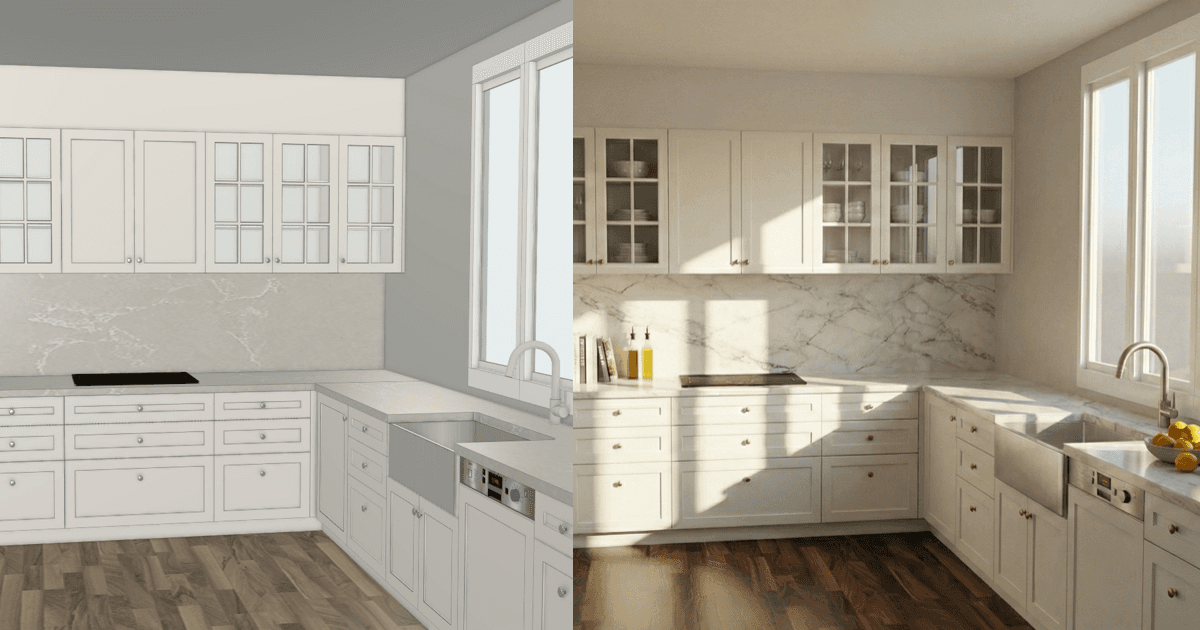
Is your engineering software killing your sales pitch? If you use Mozaik™, you know it is a powerhouse for manufacturing. The cutlists are precise, the nesting is efficient, and the CNC data is solid. But when it comes time to show the client their "dream kitchen," the default 3D view can sometimes leave them... underwhelming.
Clients today have been spoiled by HGTV. They don't speak "wireframe." They struggle to look at a blocky, grey 3D model and imagine a warm, white shaker kitchen with oak floors.
The Problem: Engineering Tools Aren't Sales Tools - Mozaik—and software like Cabinet Vision or Microvellum—is built for accuracy, not beauty. Trying to get a photorealistic image out of an engineering engine often requires:
Expensive third-party plugins (Vortek, etc.).
Exporting files to SketchUp or 3ds Max.
Hours of tweaking lighting settings and textures.
You are a cabinet maker, not a 3D artist. You shouldn't have to spend your evenings fighting with lighting just to sell a job.
The Solution: The "Screenshot" Workflow - What if you didn't need to export a 3D model at all? QuickCabRender (QCR) takes a completely different approach. Instead of reading your complex geometry, we use AI to "see" your design like a human does.
How it works:
Snap: Take a simple screenshot of your Mozaik 3D view.
Drop: Drag that image into QuickCabRender.
Describe: Modify some simple settings.
Render: In less than 20 seconds, you have a stunning, photorealistic visualization.
Why this changes the game: Because QCR works from an image, it is 100% agnostic. It doesn't care what version of Mozaik you run. It doesn't need to be installed on your work computer. It just works.
Stop losing sales to "I need to think about it." Show them the dream, get the deposit, and get back to building.
Try it free: Turn your screenshot into a render now.
← Back to Articles